

Secure Shell (SSH) is still the backbone of remote server management in 2026. Whether you’re deploying applications, debugging production issues, or managing cloud infrastructure, efficient SSH workflows can dramatically reduce friction and improve productivity.
This guide focuses on practical techniques to make SSH faster, cleaner, and more powerful for day-to-day server control.
Why SSH Efficiency Matters
Most developers underestimate how much time is lost in repetitive SSH operations.
Common inefficiencies:
- Re-typing long server commands
- Re-authenticating repeatedly
- Manually navigating directories every session
- Re-uploading files instead of syncing
- Running one-off commands inefficiently
Key insight:
Improving SSH workflow is not about learning more commands—it’s about reducing repetitive context switching.
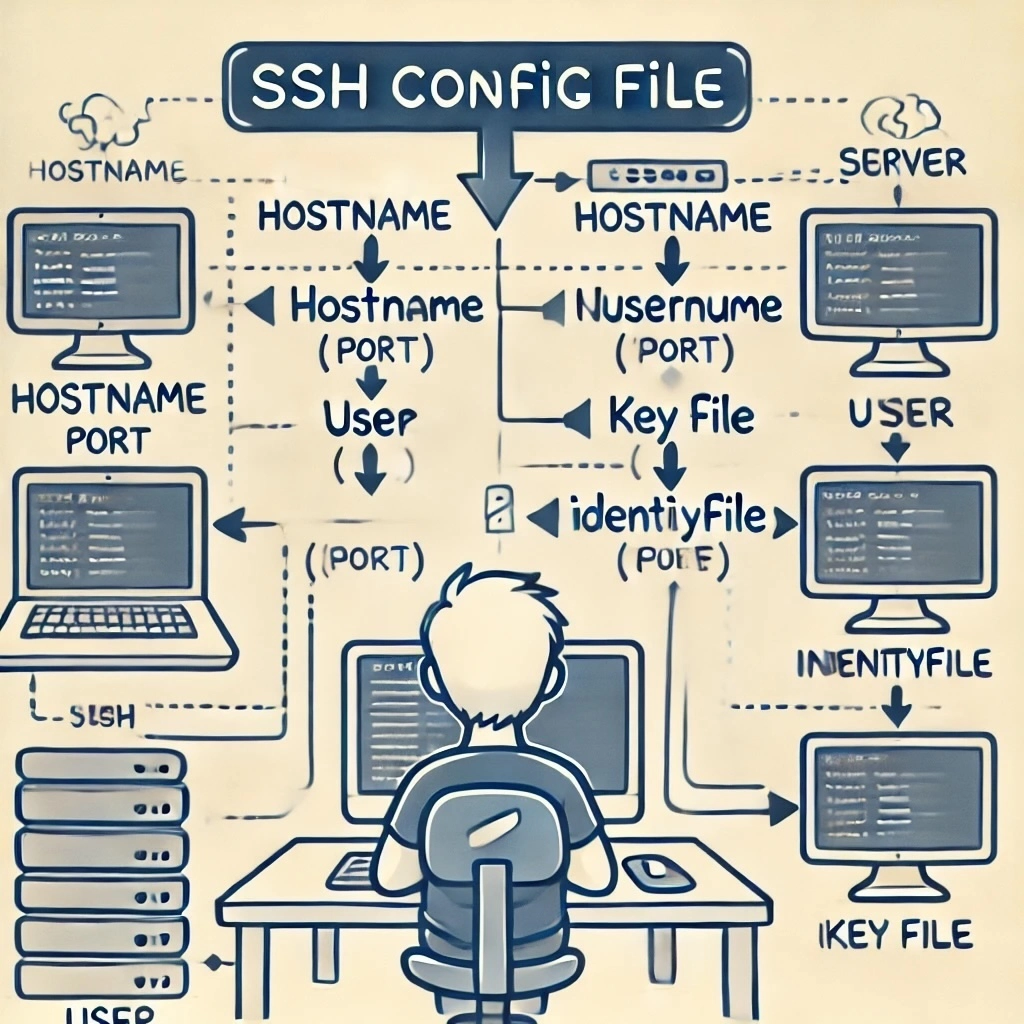
Step 1: Use SSH Config to Eliminate Repetition
The simplest productivity boost is configuring hosts properly.
SSH config file:
~/.ssh/config
Example setup:
Host prod
    HostName 203.0.113.10
    User ubuntu
    IdentityFile ~/.ssh/id_ed25519_prod
    Port 22
Result:
Instead of:
ssh [email protected] -i ~/.ssh/id_ed25519_prod
You can run:
ssh prod
Key insight:
SSH config turns long commands into human-readable shortcuts.
Step 2: Use SSH Keys with SSH Agent for Seamless Login
Repeated passphrase entry slows down workflows.
Start SSH agent:
eval "$(ssh-agent -s)"
Add key:
ssh-add ~/.ssh/id_ed25519
Benefits:
- No repeated password prompts
- Faster session initiation
- Secure in-memory key handling
Key insight:
SSH agent removes friction without reducing security.
Step 3: Run Remote Commands Without Full Login
You don’t always need an interactive session.
Basic remote execution:
ssh prod "uptime"
Run multiple commands:
ssh prod "cd /var/www && git pull && npm install"
Key use cases:
- Quick server checks
- Deployment triggers
- Log inspection
- Restarting services
Key insight:
SSH becomes a remote command execution tool, not just a login mechanism.
Step 4: Use SSH Multiplexing for Speed
SSH multiplexing reuses existing connections to avoid repeated handshakes.
Enable in config:
Host *
    ControlMaster auto
    ControlPath ~/.ssh/cm-%r@%h:%p
    ControlPersist 10m
Benefits:
- Faster repeated connections
- Reduced authentication overhead
- Seamless multiple terminal sessions
Key insight:
Multiplexing makes SSH feel nearly instantaneous after the first connection.
Step 5: Streamline File Transfers with SCP and Rsync
Moving files efficiently is a core SSH workflow.
SCP (simple transfers):
scp file.txt prod:/var/www/
Recursive folder copy:
scp -r project/ prod:/var/www/
Rsync (recommended for efficiency):
rsync -avz project/ prod:/var/www/
Advantages of rsync:
- Only transfers changed files
- Faster for large projects
- Resume support for interrupted transfers
Key insight:
Rsync is the preferred tool for incremental deployments.
Step 6: Create SSH Aliases for Common Tasks
Aliases reduce cognitive load.
Example aliases in .bashrc or .zshrc:
alias prodssh="ssh prod"
alias logs="ssh prod 'tail -f /var/log/syslog'"
alias deploy="ssh prod 'cd app && git pull && pm2 restart all'"
Benefits:
- One-word commands
- Faster deployment cycles
- Reduced typing errors
Key insight:
Aliases turn workflows into intent-based commands.
Step 7: Use Persistent Sessions with tmux
SSH sessions disconnect easily, but terminal multiplexers solve this.
Start session:
tmux new -s work
Detach:
Ctrl + B, then D
Reattach:
tmux attach -t work
Why it matters:
- Sessions survive disconnections
- Multiple windows in one session
- Ideal for long-running processes
Key insight:
tmux turns SSH into a persistent workspace instead of a fragile connection.
Step 8: Automate Deployment Workflows
SSH becomes powerful when integrated into scripts.
Example deployment script:
#!/bin/bash

ssh prod << 'EOF'
cd /var/www/app
git pull origin main
npm install
pm2 restart app
EOF
Benefits:
- Consistent deployments
- Reduced human error
- Repeatable workflows
Key insight:
Automation transforms SSH into a deployment pipeline tool.
Step 9: Secure and Speed Up DNS Resolution
Slow SSH connections are often caused by DNS delays.
Fix in SSH server config:
UseDNS no
Client-side optimization:
- Use IP addresses in config when possible
- Ensure fast DNS resolvers
Key insight:
Network tuning can significantly improve perceived SSH speed.
Step 10: Monitor Servers Efficiently via SSH
Instead of logging in repeatedly, combine monitoring commands.
Examples:
ssh prod "htop"
ssh prod "df -h"
ssh prod "journalctl -f"
Key insight:
SSH becomes a remote observability interface.
Step 11: Reduce Latency with Compression
Compression helps on slow networks.
Enable compression:
ssh -C prod
Or in config:
Compression yes
Best for:
- Long-distance servers
- Low-bandwidth environments
Key insight:
Compression improves responsiveness in constrained networks.
Step 12: Improve Workflow with File Watching + SSH
Combine SSH with local file watchers for instant updates.
Example tools:
entrnodemon- custom scripts
Concept:
- Watch local files
- Trigger rsync or SSH deployment automatically
Key insight:
This creates a live sync development experience.
Common SSH Workflow Mistakes
- Logging in manually for every task
- Not using SSH config files
- Ignoring connection reuse features
- Overusing full interactive sessions
- Not automating repetitive server tasks
Advanced SSH Workflow Patterns
1. One-command deployment pipelines
Combine git, build, and restart into a single SSH command.
2. Git-based server updates
Servers pull directly from repositories via SSH keys.
3. Zero-downtime deployments
Use scripts that swap versions instead of restarting services.
4. Infrastructure-as-code integration
SSH becomes part of automated provisioning systems.
Final Insight
Efficient SSH workflows are about eliminating unnecessary friction between intent and execution.
The most productive developers in 2026 don’t “use SSH more”—they use it more intelligently through:
- Config-driven shortcuts
- Persistent sessions
- Automated scripts
- Remote command execution
- Seamless file synchronization
When optimized correctly, SSH stops feeling like a manual login tool and becomes a fast, programmable interface for controlling entire server environments.