

Backups are one of the most critical parts of any system, yet they’re often the most neglected. In 2026, even with cloud storage and managed services, many developers and system administrators still rely on Bash-based backup automation because it is fast, flexible, and fully under your control.
This guide walks through building a reliable backup system using Bash—from simple scripts to more robust automation patterns.
Why Automate Backups with Bash?
Manual backups fail for predictable reasons: they’re forgotten, inconsistent, or poorly versioned. Automation solves this.
Benefits of Bash-based backups:
- Lightweight and fast
- Runs on any Linux system
- No external dependencies
- Easily scheduled with cron
- Fully customizable logic
Key insight:
A backup system is only useful if it runs consistently without human intervention.
Step 1: Define What You Want to Back Up
Before writing scripts, clearly define your backup scope.
Common targets:
- Project directories (
/home/user/projects) - Databases
- Configuration files (
/etc) - Application uploads
- Logs (if needed)
Example structure:
- Source:
/home/user/app - Destination:
/backups/app
Key insight:
Good backups start with clear boundaries, not scripts.
Step 2: Create a Basic Backup Script
Let’s start with a simple compressed backup using tar.
#!/bin/bash

SOURCE="/home/user/projects"
DEST="/home/user/backups"

tar -czf "$DEST/backup.tar.gz" "$SOURCE"

echo "Backup completed successfully"
What this does:
- Compresses the source directory
- Saves it as a
.tar.gzarchive - Outputs confirmation message
Step 3: Add Timestamped Backups
Overwriting backups is risky. Always version them.
#!/bin/bash

SOURCE="/home/user/projects"
DEST="/home/user/backups"

DATE=$(date +%Y-%m-%d_%H-%M-%S)
BACKUP_FILE="backup_$DATE.tar.gz"

tar -czf "$DEST/$BACKUP_FILE" "$SOURCE"

echo "Backup created: $BACKUP_FILE"
Key improvement:
- Each backup is unique
- Enables rollback to specific points in time
Step 4: Automate Cleanup of Old Backups
Without cleanup, backups will consume disk space.
Example: Delete backups older than 7 days
#!/bin/bash

find /home/user/backups -type f -name "*.tar.gz" -mtime +7 -delete

echo "Old backups cleaned up"
Key insight:
A backup system must include lifecycle management, not just creation.
Step 5: Combine Backup + Cleanup into One Script
Now let’s build a complete solution.
#!/bin/bash

SOURCE="/home/user/projects"
DEST="/home/user/backups"

DATE=$(date +%Y-%m-%d_%H-%M-%S)
BACKUP_FILE="backup_$DATE.tar.gz"

# Create backup
tar -czf "$DEST/$BACKUP_FILE" "$SOURCE"

# Remove backups older than 7 days
find "$DEST" -type f -name "*.tar.gz" -mtime +7 -delete

echo "Backup completed: $BACKUP_FILE"
Key insight:
A production-ready script should handle both creation and cleanup automatically.
Step 6: Add Logging for Reliability
Logging helps track success and failure.
#!/bin/bash

LOGFILE="/var/log/backup.log"
SOURCE="/home/user/projects"
DEST="/home/user/backups"

DATE=$(date +%Y-%m-%d_%H-%M-%S)
BACKUP_FILE="backup_$DATE.tar.gz"

echo "[$(date)] Starting backup..." >> "$LOGFILE"

if tar -czf "$DEST/$BACKUP_FILE" "$SOURCE"; then
  echo "[$(date)] Backup successful: $BACKUP_FILE" >> "$LOGFILE"
else
  echo "[$(date)] Backup FAILED" >> "$LOGFILE"
fi

find "$DEST" -type f -name "*.tar.gz" -mtime +7 -delete

echo "[$(date)] Cleanup completed" >> "$LOGFILE"
Key insight:
Logs turn silent automation into observable systems.
Step 7: Handle Errors Properly
Backups must fail loudly when something goes wrong.
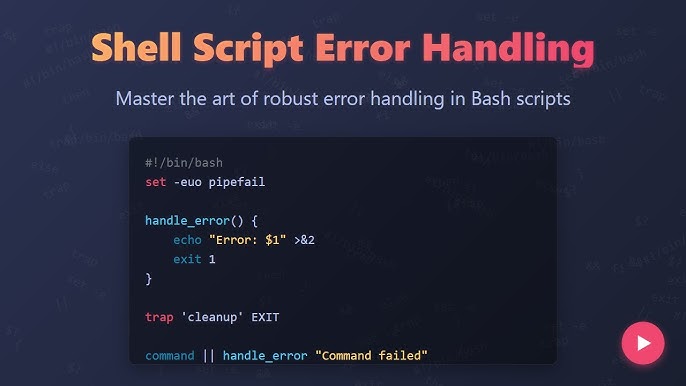
set -euo pipefail
What this ensures:
- Script exits on errors
- Undefined variables are caught
- Pipeline failures are detected
Optional trap for debugging:
trap 'echo "Backup failed at line $LINENO"' ERR
Step 8: Compress More Efficiently
For large systems, performance matters.
Faster compression using pigz:
tar --use-compress-program=pigz -cf backup.tar.gz /data
Alternative formats:
.tar.gz→ standard, compatible.tar.zst→ faster compression (Zstandard).tar.xz→ high compression, slower
Key insight:
Compression choice affects both speed and storage cost.
Step 9: Backing Up Remote Servers
You can extend Bash backups to remote systems using SSH.
Example:
ssh user@server "tar -czf - /var/www" > backup.tar.gz
What this does:
- Runs backup remotely
- Streams data to local machine
- No intermediate storage needed
Step 10: Automate Backups with Cron
Scheduling is what makes backups truly reliable.
Open cron:
crontab -e
Run daily at 2 AM:
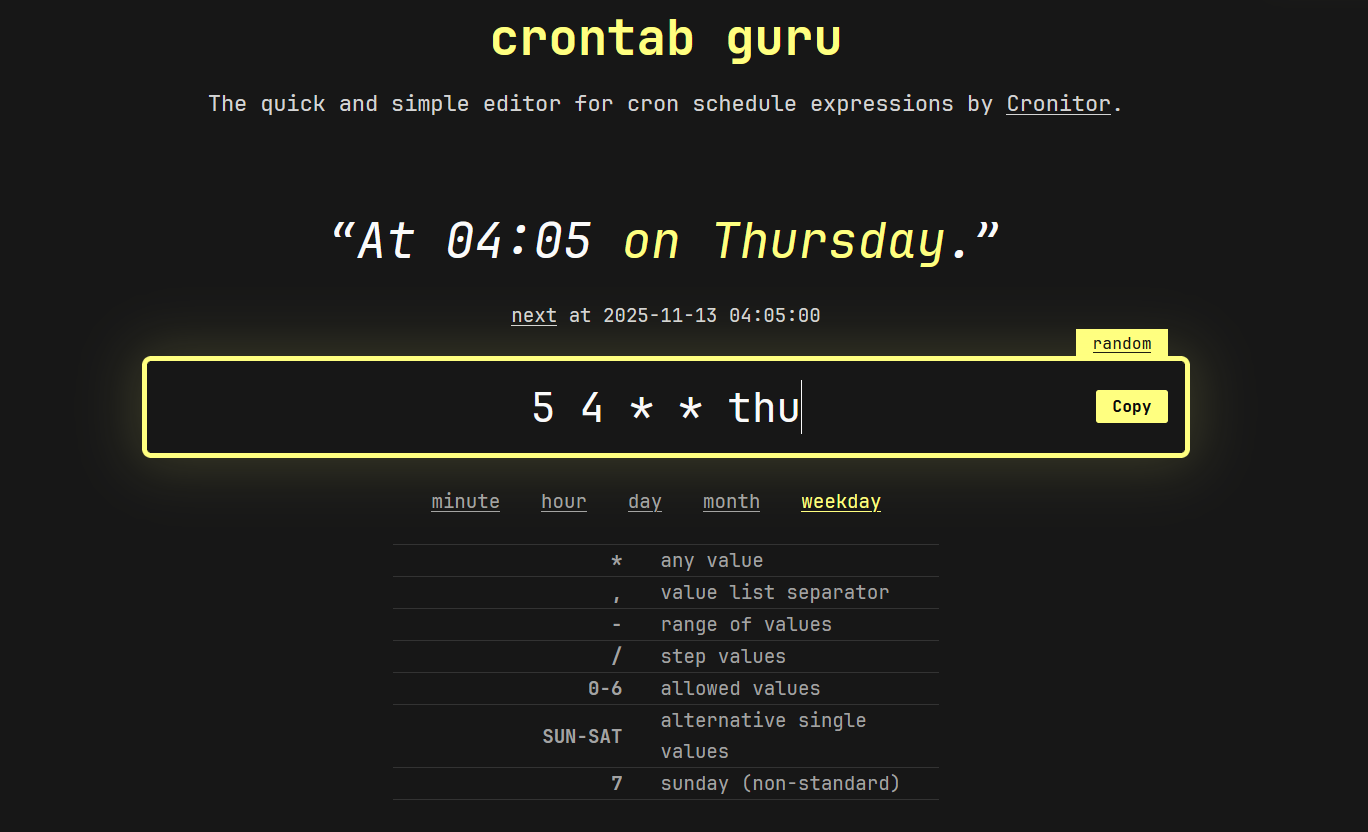
0 2 * * * /home/user/scripts/backup.sh >> /var/log/backup.log 2>&1
Key insight:
Automation + scheduling = true hands-free reliability.
Step 11: Secure Your Backups
Backups often contain sensitive data.
Best practices:
- Restrict permissions:
chmod 600 backup.tar.gz
- Store off-site copies
- Encrypt backups if needed:
gpg -c backup.tar.gz
Key insight:
A backup without security is a data leak waiting to happen.
Step 12: Optimize Storage with Rotation Policies
Advanced systems use rotation strategies.
Example: Keep only last 5 backups
ls -tp /backups | grep -v '/$' | tail -n +6 | xargs -I {} rm -- /backups/{}
Key insight:
Rotation prevents uncontrolled storage growth.
Common Backup Mistakes
- Not testing restore process
- Storing backups on the same disk
- Forgetting to log failures
- Overwriting old backups
- No encryption for sensitive data
- Not verifying backup integrity
Best Practices for Reliable Backup Systems
1. Always test restores
A backup is useless if it cannot be restored.
2. Use versioned backups
Never overwrite critical data.
3. Automate everything
Human intervention introduces failure risk.
4. Monitor logs
Detect failures early.
5. Store backups off-site
Protect against hardware failure.
Advanced Backup Strategies
1. Incremental backups
Only store changes since last backup.
2. Snapshot-based backups
Use filesystem snapshots for consistency.
3. Remote replication
Send backups to another server or cloud storage.
4. Hybrid systems
Combine local fast recovery + remote long-term storage.
Final Insight
Bash-based backup automation remains one of the simplest yet most powerful reliability tools in system administration.
A strong backup system is not defined by complexity—it is defined by:
- Consistency
- Automation
- Verification
- Recovery readiness
When implemented correctly, a Bash backup script becomes more than just a tool—it becomes a continuous safety mechanism that protects your entire system from data loss.