

System administration in 2026 is still heavily driven by the Linux command line. Even with advanced dashboards and AI-assisted tooling, the fastest way to manage servers, debug issues, and automate tasks remains a well-optimized terminal workflow.
This guide focuses on practical, high-impact command line productivity hacks that help system administrators work faster, reduce errors, and manage infrastructure more efficiently.
Mastering Navigation: Move Faster in the Filesystem
Efficient navigation is the foundation of terminal productivity.
1. Use cd - to toggle directories
cd /var/log
cd /etc/nginx
cd -
This instantly returns you to the previous directory.
2. Use pushd and popd for directory stacks
pushd /etc
pushd /var/log
popd
Why it matters:
- Maintains navigation history
- Ideal for switching between config and log directories
3. Use autocd in Bash
shopt -s autocd
Now you can simply type:
/etc/nginx
Key insight:
Less typing means fewer context switches and faster execution.
Speed Up File Operations
4. Use brace expansion
touch file{1..10}.log
Use case:
- Creating multiple logs
- Generating test files
- Batch operations
5. Quickly find files with find
find /var/log -name "*.log"
Optimize with filters:
find /var/log -type f -mtime -1
Key insight:
Precise search reduces time spent manually browsing directories.
6. Use fd as a faster alternative (if installed)
fd nginx
Why it’s faster:
- Simpler syntax
- Faster execution
- Better defaults
Text Processing Efficiency
7. Combine grep, awk, and sed
grep "error" logfile.log | awk '{print $1, $2}'
Use case:
- Log analysis
- Debugging system errors
- Extracting structured data
8. Use ripgrep for faster searching
rg "database error"
Key insight:
Modern tools dramatically outperform legacy grep in large codebases.
System Monitoring Shortcuts
9. Real-time process monitoring
htop
Or lighter alternative:
top
10. Disk usage analysis
df -h
For directory breakdown:
du -sh *
11. Live log monitoring
tail -f /var/log/syslog
Key insight:
Real-time observation is essential for incident response.
Networking Productivity Hacks
12. Check open ports quickly
ss -tuln
13. Test connectivity
ping google.com
14. Download files quickly with curl
curl -O https://example.com/file.tar.gz
15. Use wget for recursive downloads
wget -r https://example.com
Key insight:
Networking tools are essential for rapid diagnostics and deployment.
Process Management Shortcuts
16. Find running processes
ps aux | grep nginx
17. Kill processes quickly
kill -9 PID
18. Kill by name
pkill nginx
Key insight:
Efficient process control reduces downtime during incidents.
Command History Optimization
19. Search history quickly
Ctrl + r
20. Re-run last command
!!
21. Run last command with sudo
sudo !!
Key insight:
Command history is one of the most underutilized productivity tools.
Alias and Function Power
22. Create useful aliases
alias ll="ls -lah"
alias update="sudo apt update && sudo apt upgrade -y"
23. Create reusable functions
backup() {
  tar -czf backup.tar.gz /important/data
}
Key insight:
Aliases and functions reduce repetitive command entry significantly.
SSH Productivity Enhancements
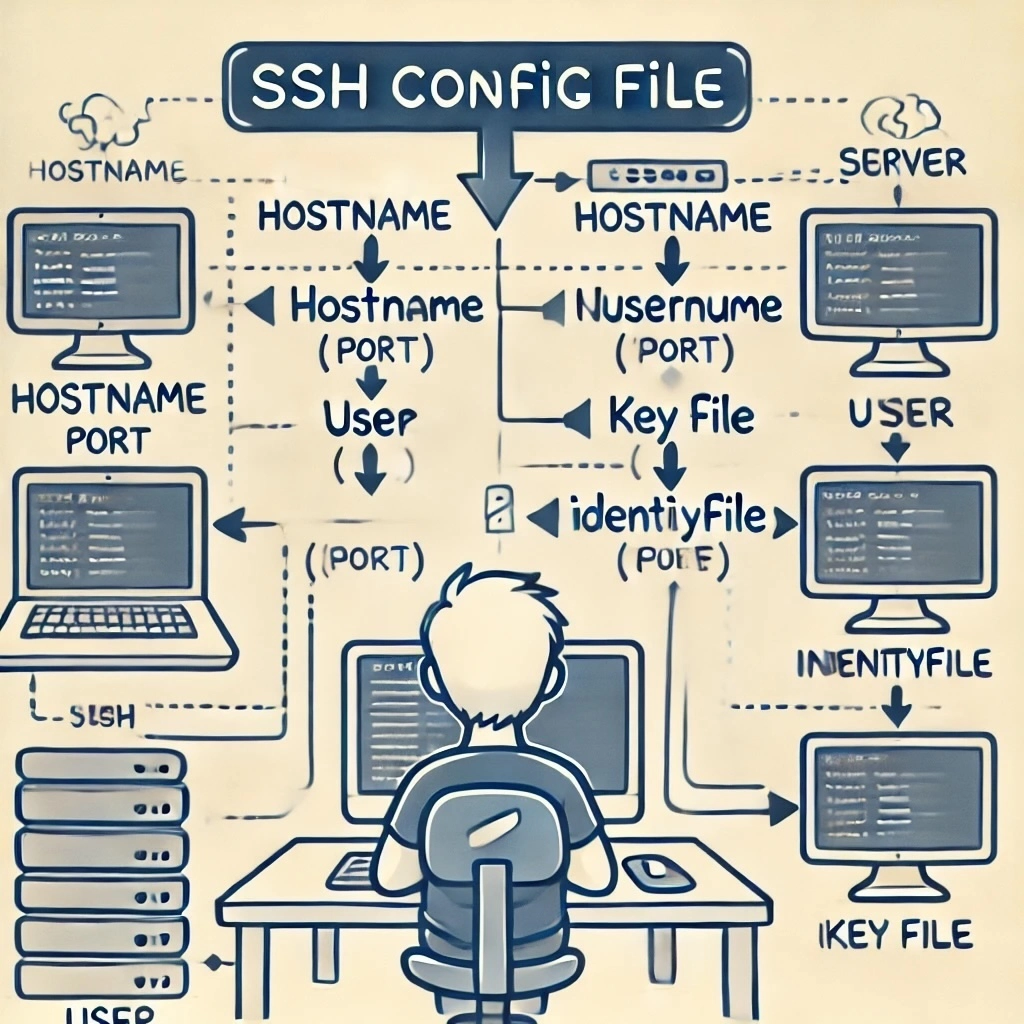
24. Use SSH config shortcuts
Host prod
    HostName 192.168.1.10
    User ubuntu
Now:
ssh prod
25. Run remote commands instantly
ssh prod "uptime"
Key insight:
SSH becomes a remote command interface, not just a login tool.
Clipboard and Output Tricks
26. Copy output to clipboard
cat file.txt | xclip -selection clipboard
27. Save output while viewing
command | tee output.log
Key insight:
Dual output improves debugging and documentation.
Automation Shortcuts
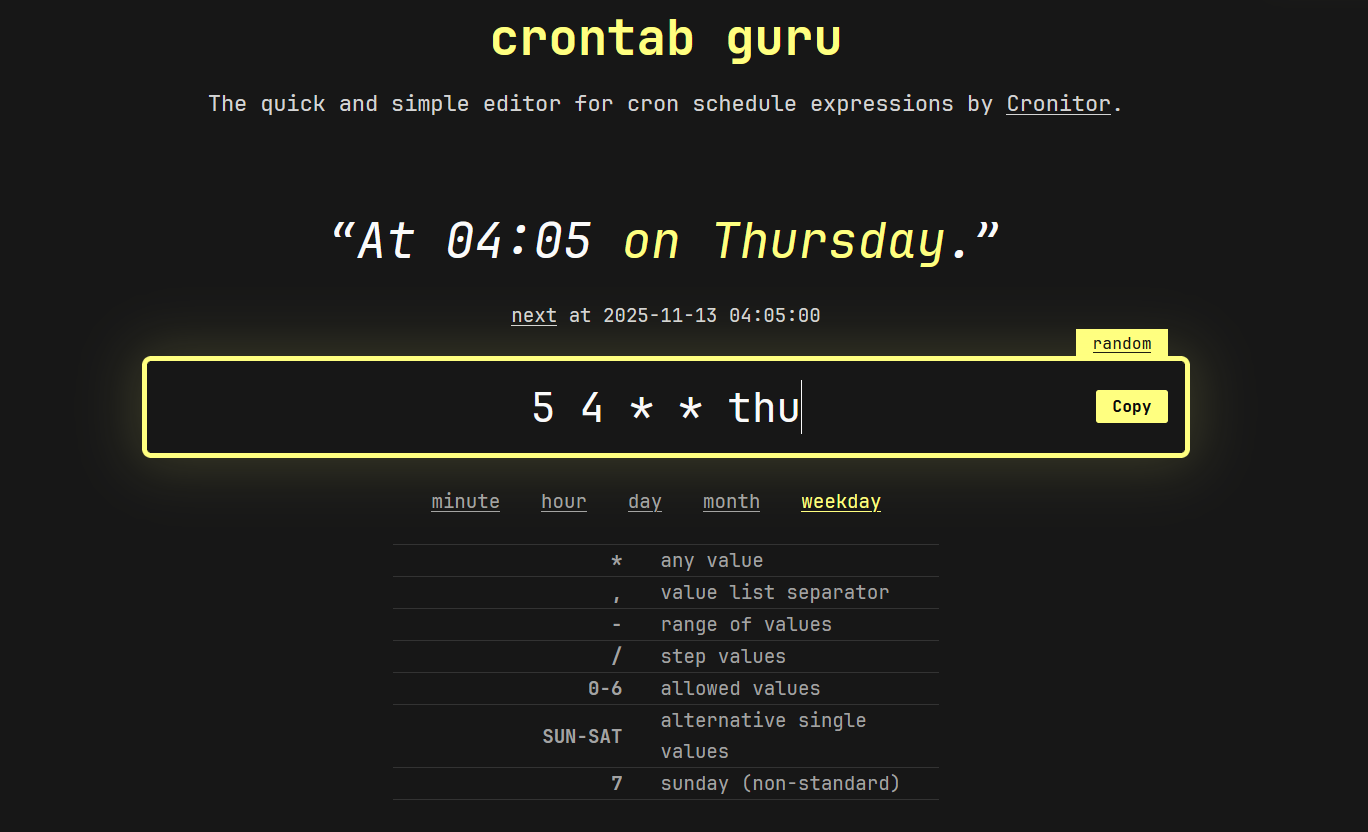
28. Use cron for scheduling
crontab -e
Example:
0 0 * * * /home/user/backup.sh
29. Chain commands efficiently
mkdir test && cd test && touch file.txt
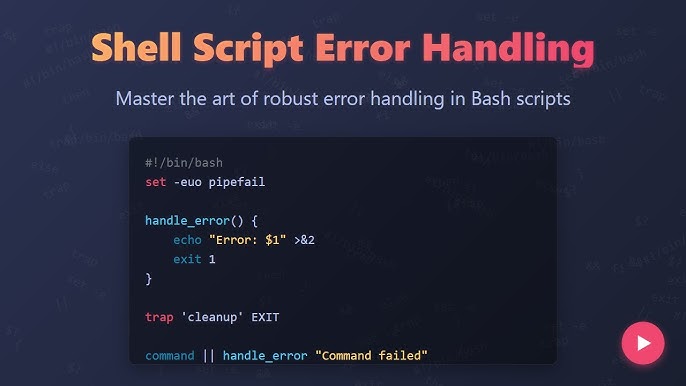
30. Use logical OR for fallbacks
command || echo "Command failed"
Security and Permissions Efficiency
31. Fix permissions quickly
chmod 600 file.txt
32. Change ownership
chown user:user file.txt
Key insight:
Permission mistakes are a major source of production issues.
Common Mistakes to Avoid
- Overusing long manual command chains
- Ignoring aliases and functions
- Not leveraging command history
- Using outdated tools instead of modern alternatives
- Failing to automate repetitive tasks
Advanced Productivity Patterns
1. Pipeline-driven workflows
Combine tools into single commands:
cat log.txt | grep error | sort | uniq
2. One-line server diagnostics
uptime && df -h && free -m
3. Script-first thinking
Turn repeated commands into reusable scripts instead of retyping them.
Final Insight
Linux command line productivity is not about memorizing more commands—it’s about building faster mental and operational workflows.
The most effective system administrators in 2026 rely on:
- Smart navigation shortcuts
- Powerful text processing tools
- Efficient SSH usage
- Aliases and automation
- Pipeline-based thinking
When these habits are combined, the terminal becomes not just a tool, but a high-speed interface for controlling entire infrastructure systems efficiently and reliably.