
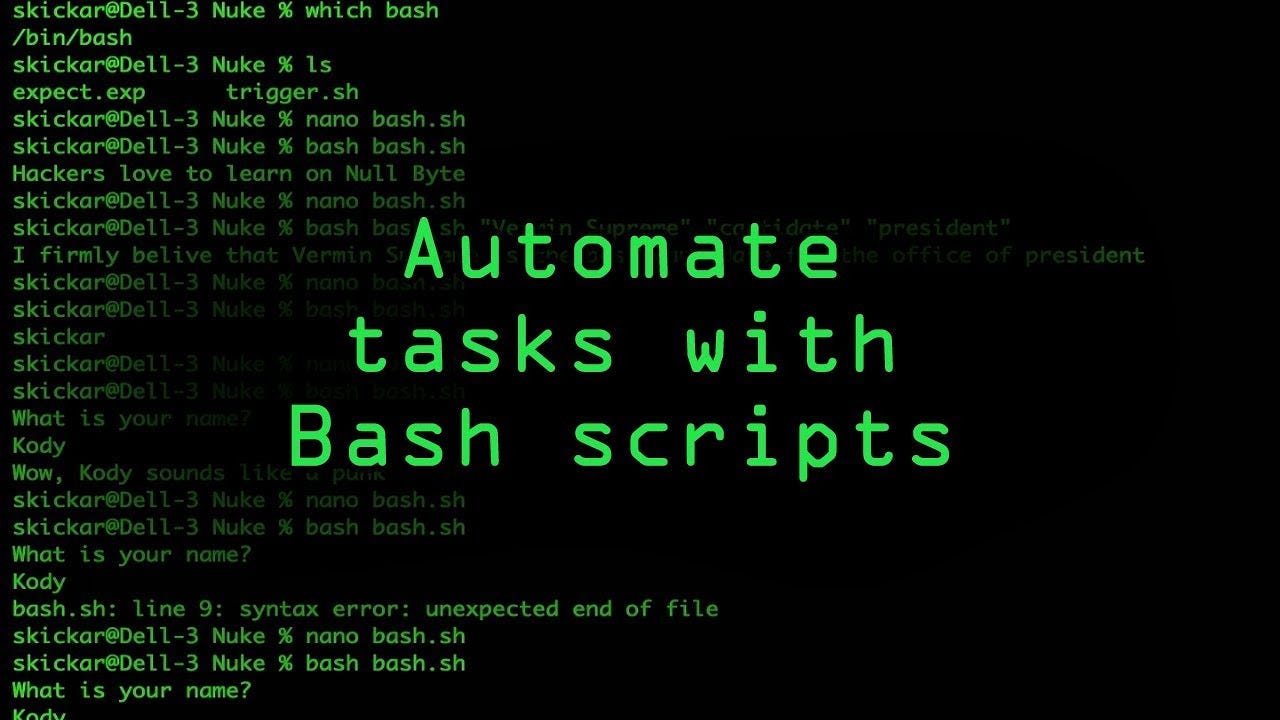
Bash scripting remains one of the most powerful tools for developers and system users in 2026. While modern automation platforms and AI tools have emerged, Bash is still unmatched when it comes to fast, lightweight, local automation on Unix-based systems.
Whether you’re managing files, deploying code, or automating repetitive tasks, Bash scripts can eliminate friction from your daily workflow and save hours every week.
Why Bash Still Matters in 2026
Despite newer automation tools, Bash remains essential because it is:
- Native to Linux and macOS environments
- Extremely fast and lightweight
- Perfect for gluing system utilities together
- Ideal for server-side automation
- Easy to integrate into CI/CD pipelines
Key insight:
Bash is not competing with modern tools—it is the foundation layer that everything else builds on.
Step 1: Understanding Basic Bash Structure
Every Bash script follows a simple structure:
Basic template:
#!/bin/bash

# Your commands go here
echo "Hello, world!"
Key components:
#!/bin/bash→ Shebang (defines interpreter)echo→ Prints output- Comments start with
#
Make script executable:
chmod +x script.sh
Run it:
./script.sh
Step 2: Automating File Management
One of the most common uses of Bash is automating file organization.
Example: Auto-organize downloads folder
#!/bin/bash

mkdir -p Images Documents Videos Others

for file in *; do
  case "$file" in
    *.jpg|*.png|*.gif)
      mv "$file" Images/
      ;;
    *.pdf|*.docx|*.txt)
      mv "$file" Documents/
      ;;
    *.mp4|*.mov)
      mv "$file" Videos/
      ;;
    *)
      mv "$file" Others/
      ;;
  esac
done
What this does:
- Scans current directory
- Sorts files by extension
- Moves them into structured folders
Key insight:
Small scripts like this eliminate daily manual clutter instantly.
Step 3: Batch Renaming Files
Renaming files one by one is inefficient. Bash automates it easily.
Example: Rename images sequentially
#!/bin/bash

count=1

for file in *.jpg; do
  mv "$file" "image_$count.jpg"
  ((count++))
done
Use cases:
- Photo organization
- Dataset preparation
- Bulk asset management
Step 4: Automating Backups
Backups are one of the most valuable automation use cases.
Example: Simple backup script
#!/bin/bash

SOURCE="/home/user/projects"
DEST="/home/user/backups"

DATE=$(date +%Y-%m-%d)
BACKUP_FILE="backup_$DATE.tar.gz"

tar -czf "$DEST/$BACKUP_FILE" "$SOURCE"

echo "Backup completed: $BACKUP_FILE"
What it does:
- Compresses a directory
- Adds timestamp
- Stores versioned backups
Key insight:
Automation removes reliance on memory for critical tasks like backups.
Step 5: System Monitoring Scripts
Bash can be used to monitor system health quickly.
Example: Disk usage alert
#!/bin/bash

THRESHOLD=80
USAGE=$(df / | grep / | awk '{print $5}' | sed 's/%//g')

if [ "$USAGE" -gt "$THRESHOLD" ]; then
  echo "Warning: Disk usage is above $THRESHOLD%"
fi
Use cases:
- Server monitoring
- Storage alerts
- Cron job integrations
Step 6: Automating Git Workflows
Developers can significantly speed up Git operations.
Example: Quick commit script
#!/bin/bash

git add .
git commit -m "$1"
git push origin main
Usage:
./deploy.sh "Fix login bug"
Key insight:
Automation reduces repetitive command chaining in development workflows.
Step 7: Scheduling Tasks with Cron
Bash scripts become powerful when scheduled.
Open cron editor:
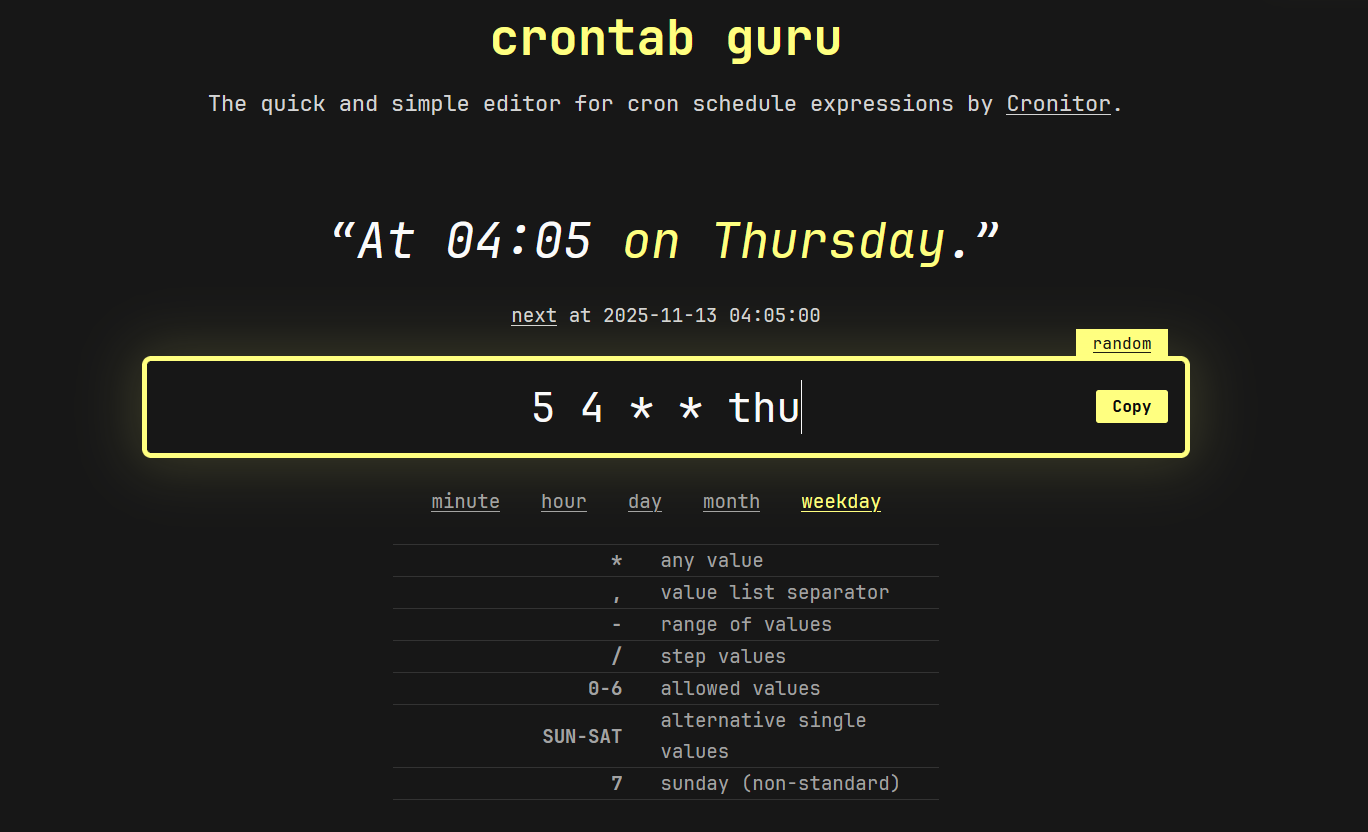
crontab -e
Example: Run backup daily at midnight
0 0 * * * /home/user/scripts/backup.sh
Common schedules:
- Daily backups
- Log cleanup
- System updates
- Data sync tasks
Step 8: Working with Environment Variables
Environment variables make scripts flexible and reusable.
Example:
#!/bin/bash

echo "Deploying to $ENVIRONMENT environment"
Run:
ENVIRONMENT=production ./deploy.sh
Key insight:
Environment variables allow scripts to adapt without modification.
Step 9: Logging and Debugging Scripts
Good scripts include logging for tracking execution.
Example:
#!/bin/bash

LOGFILE="script.log"

echo "Script started at $(date)" >> $LOGFILE

# your commands here

echo "Script completed at $(date)" >> $LOGFILE
Debug mode:
bash -x script.sh
Step 10: Combining Commands for Power Automation
Bash is most powerful when combining tools.
Example: Find and delete old files
find /tmp -type f -mtime +7 -delete
Example: Monitor logs in real time
tail -f /var/log/syslog
Key insight:
Bash excels at composing small utilities into powerful workflows.
Common Mistakes in Bash Scripting
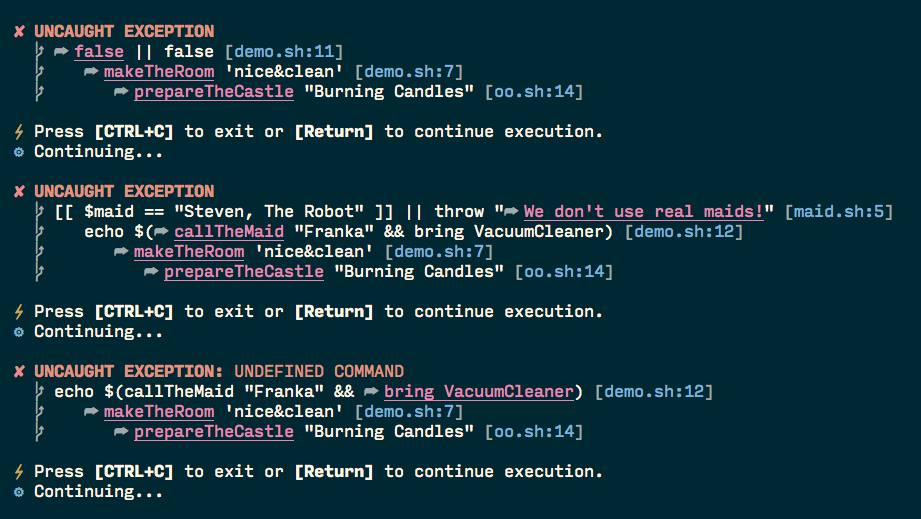
- Not handling spaces in filenames
- Forgetting to quote variables
- Hardcoding paths instead of using variables
- Ignoring error handling
- Writing overly complex scripts instead of modular ones
Best Practices for Clean Bash Scripts
1. Always quote variables
"$variable"
2. Use meaningful names
Avoid vague variables like x or temp.
3. Add comments for clarity
Explain why, not just what.
4. Break complex logic into functions
function backup() {
  echo "Backing up..."
}
Real-World Use Cases for Bash Automation
- Developer workflow automation
- Server maintenance scripts
- Log processing and cleanup
- File system organization
- CI/CD pipeline helpers
- Data preprocessing tasks
Final Insight
Bash scripting remains one of the most practical automation tools available because it operates directly at the system level with minimal overhead.
In 2026, while AI and cloud automation platforms handle large-scale orchestration, Bash continues to dominate local, fast, and reliable workflow automation.
The real power of Bash is not in complexity—it’s in eliminating repetitive actions with simple, composable commands that quietly improve productivity every day.